

반응형
01 구현 목표
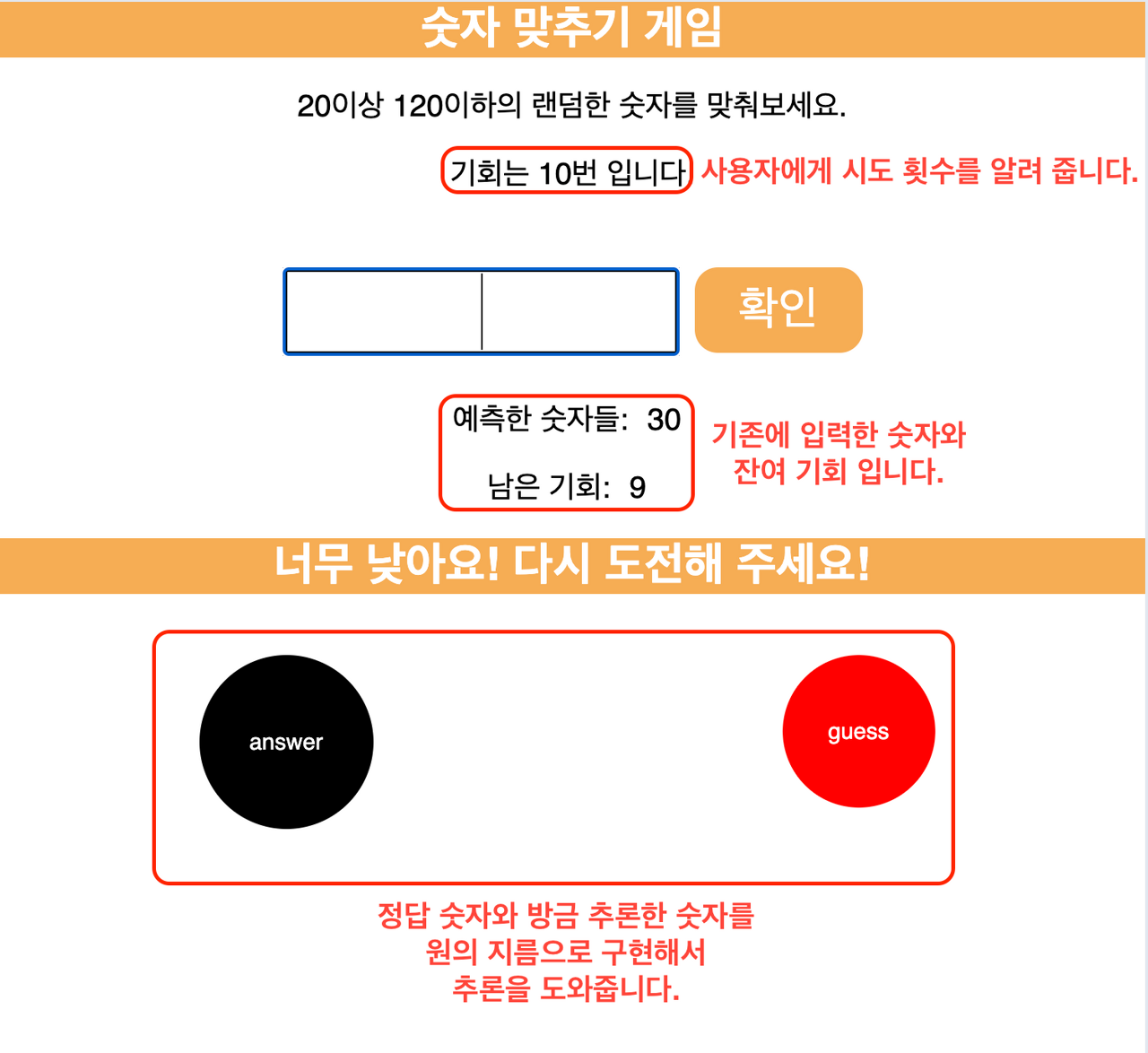
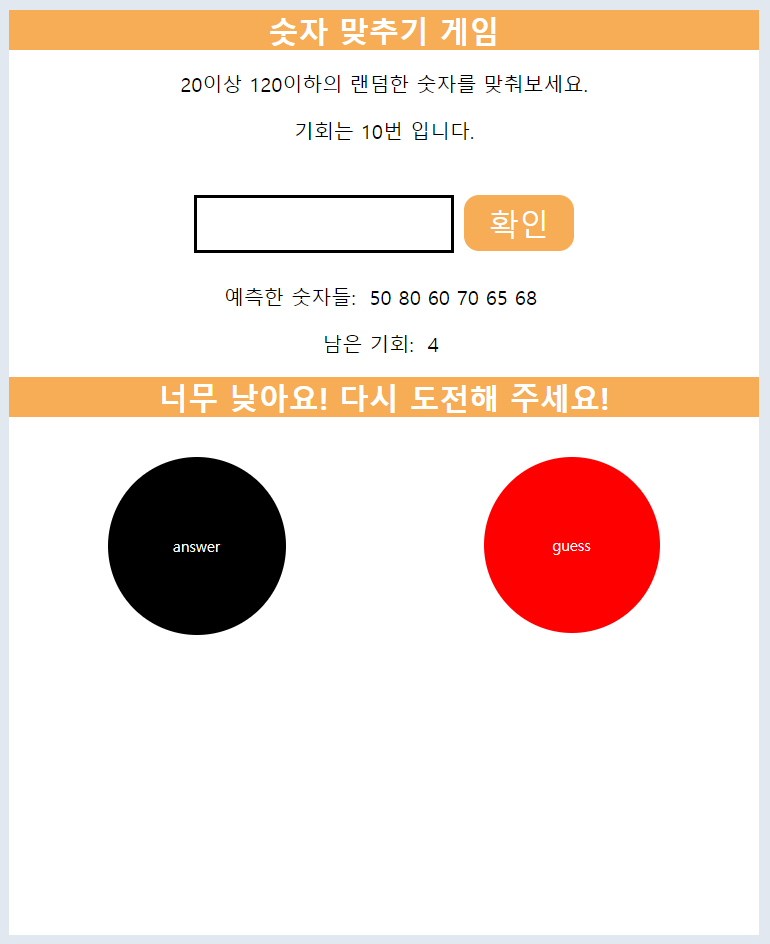
입력칸에 숫자를 입력하고 확인을 눌렀을때 정답을 맞추면 게임이 끝나는 게임으로 맞추지 못하면 입력한 숫자들을 예측한 숫자들 옆에 계속 보여주고 남은 기회가 몇번 남았는지를 알려주게 된다. 또한, 정답에 얼마나 가깝고 먼지 직관적으로 보여주기 위해 원을 통해 추론을 도와준다.
02 코드
HTML
더보기
<!DOCTYPE html>
<html lang="en">
  <head>
    <meta charset="UTF-8" />
    <meta name="viewport" content="width=device-width, initial-scale=1.0" />
    <meta http-equiv="X-UA-Compatible" content="ie=edge" />
    <title>Number Guessing Game</title>
    <link rel="stylesheet" href="style.css" />
  </head>
  <body>
    <div id="container">
      <h1>숫자 맞추기 게임</h1>
      <p>20이상 120이하의 랜덤한 숫자를 맞춰보세요.</p>
      <p>기회는 10번 입니다.</p>
      <br />
      <div id="wrapper">
        <form class="form">
          <input type="text" id="guessField" class="guessField" />
          <button type="submit" id="submitButton" class="guessSubmit">
            확인
          </button>
        </form>
        <div class="resultParas">
          <p>예측한 숫자들: <span class="guesses"></span></p>
          <p>남은 기회: <span class="lastResult">10</span></p>
          <p class="guessingResult"></p>
        </div>
        <div class="circleArea">
          <div class="answerCircleArea"></div>
          <div class="guessCircleArea"></div>
        </div>
      </div>
    </div>
    <script src="app.js"></script>
  </body>
</html>
CSS
더보기
html {
    font-family: sans-serif;
  }

  body {
    background-color: #e2e8f0;
    width: 50%;
    max-width: 750px;
    min-width: 480px;
    margin: auto;
  }

  #container {
    width: 750px;
    height: 900px;
    background-color: white;
  }

  .lastResult {
    color: black;
    padding: 7px;
  }

  .guesses {
    color: black;
    padding: 7px;
  }

  form {
    display: flex;
    margin: 10px 0;
  }

  #submitButton {
    width: 110px;
    height: 56px;
    color: #fff;
    background-color: #f6ad55;
    color: white;
    border-radius: 15px;
    font-size: 30px;
    border-style: none;
    margin-left: 10px;
  }

  #submitButton:hover {
    background-color: #e3e3e3;
  }

  #submitButton:disabled {
    background-color: #e2e8f0;
  }

  #guessField {
    color: #000;
    width: 250px;
    height: 50px;
    font-size: 30px;
    border-style: none;
    font-size: 45px;
    border: 3px solid black;
    text-align: center;
  }

  #guessField:disabled {
    background-color: #e2e8f0;
    border-color: #c1c0c0;
  }

  #guess {
    font-size: 30px;
    color: black;
  }

  #wrapper {
    display: flex;
    flex-direction: column;
    align-items: center;
    box-sizing: border-box;
    text-align: center;
    width: 750px;
    height: 750px;
    background-color: white;
    color: #fff;
    font-size: 25px;
    background-color: white;
  }

  h1 {
    width: 750px;
    background-color: #f6ad55;
    color: #fff;
    font-size: 30px;
    text-align: center;
  }

  #explanation {
    width: 750px;
    background: white;
  }

  p {
    color: black;
    font-size: 20px;
    text-align: center;
  }

  #newGame {
    cursor: pointer;
    font-size: 30px;
    text-align: center;
  }

  #newGame:hover {
    background-color: #e3e3e3;
  }

  .circleArea {
    width: 750px;
    height: 300px;
    margin-top: 20px;
    display: flex;
  }

  .answerCircleArea {
    width: 375px;
    display: flex;
    justify-content: center;
  }

  .guessCircleArea {
    width: 375px;
    display: flex;
    justify-content: center;
  }

  .circle {
    display: flex;
    justify-content: center;
    align-items: center;
    font-size: 15px;
    border-radius: 50%;
    transition: 0.5s;
  }

  #answerCircle {
    background-color: black;
  }

  #guessCircle {
    background-color: red;
  }
Javascript
더보기
let randomNumber = parseInt(Math.random() * 100 + 30);

// DOM 관련들은 보통 변수명 앞에 $기호를 붙이기도 합니다.
const $submitButton = document.querySelector("#submitButton");
const $userInput = document.querySelector("#guessField");
const $guessSlot = document.querySelector(".guesses");
const $remainingCount = document.querySelector(".lastResult");
const $startOverGame = document.querySelector(".resultParas");
const $guessingResult = document.querySelector(".guessingResult");
const $newGameGuide = document.createElement("p");
const $circleArea = document.querySelector(".circleArea");
const $answerCircleArea = document.querySelector(".answerCircleArea");
const $guessCircleArea = document.querySelector(".guessCircleArea");

let numGuesses = 1;
let playGame = true;


// 게임을 시작하는 부분입니다.
if (playGame) {
  makeAnswerCircle(randomNumber, "answer");
  $guessingResult.innerHTML = `<h1>숫자를 입력해 주세요.</h1>`;
  $submitButton.addEventListener("click", function (e) {
    e.preventDefault();
    const guess = parseInt($userInput.value);
    checkGuess(guess);
  });
}


// 정답을 체크하는 부분입니다.
// 제출버튼 $submitButton을 클릭하면 해당 함수가 호출됩니다.
function checkGuess(guess) {
  if (validate(guess)) {
    if (numGuesses === 10 && guess !== randomNumber) {
      displayGuesses(guess);
      displayMessage(`패배했습니다! 정답은 ${randomNumber} 였습니다.`);
      endGame();
    } else {
      displayGuesses(guess);
      clearCircle();
      compareGuess(guess);
    }
  }
}

function validate(guess) {
  if (isNaN(guess)) {
    alert("숫자를 입력해 주세요");
    return false;
  } else if (guess < 20) {
    alert("20 이상의 정수를 입력해 주세요");
    return false;
  } else if (guess > 120) {
    alert("120 이하의 정수를 입력해 주세요");
    return false;
  }

  return true;
}

function clearCircle() {
  if ($guessCircleArea.childElementCount >= 1) {
    $guessCircleArea.removeChild($guessCircleArea.firstChild);
  }
}

function compareGuess(guess) {
  if (guess === randomNumber) {
    makeGuessCircle(guess, "guess");
    displayMessage(`정답입니다!`);
    endGame();
  } else if (guess < randomNumber) {
    makeGuessCircle(guess, "guess");
    displayMessage(`너무 낮아요! 다시 도전해 주세요!`);
  } else if (guess > randomNumber) {
    makeGuessCircle(guess, "guess");
    displayMessage(`너무 높아요! 다시 도전해 주세요!`);
  }
}

// 유저가 입력한 input을 보여줍니다.
function displayGuesses(guess) {
    // 구현 1. 남아있는 숫자를 보여줄 수 있도록 아래의 = 이후를 작성해주세요!
  $userInput.value = "";
  $guessSlot.innerHTML += `${guess}  `;
  numGuesses++;
  $remainingCount.innerHTML = `${11 - numGuesses}  `;
}

// 유저에게 띄울 메세지를 입력합니다.
function displayMessage(message) {
    // 구현 2. 유저에게 메세지를 보여줄 수 있도록 아래의 영역을 구현해주세요
  $guessingResult.innerHTML = `<h1>${message}</h1>`;
}

function endGame() {
  $userInput.value = "";
  $userInput.setAttribute("disabled", "");
  $submitButton.setAttribute("disabled", "");
  $newGameGuide.classList.add("button");
  $startOverGame.appendChild($newGameGuide);
  playGame = false;
  newGame();
}

function makeAnswerCircle(guess) {
  const CIRCLE_NAME = "answer";
  // 구현3. 유저가 원의 크기로 정답을 유추하기 쉽도록 showCircle 함수를 이용해서 해당 부분을 구현해주세요,
  // showCircle 함수의 "작업"이 끝나면, 해당 div에 원의 이름을 입력해주세요
  showCircle(guess, CIRCLE_NAME, $answerCircleArea).then((div) => {
    div.id = "answerCircle";
    div.append(CIRCLE_NAME);
  });
}

function makeGuessCircle(guess) {
  const CIRCLE_NAME = "guess";
  // 구현3. 유저가 원의 크기로 정답을 유추하기 쉽도록 showCircle 함수를 이용해서 해당 부분을 구현해주세요,
  // showCircle 함수의 "작업"이 끝나면, 해당 div에 원의 이름을 입력해주세요
  showCircle(guess, CIRCLE_NAME, $guessCircleArea).then((div) => {
    div.id = "guessCircle";
    div.append(CIRCLE_NAME);
  });
}


// 원을 그려주는 함수입니다, css로 그려지는 속도를 애니메이션으로 구현되어있으며,
// 원의 크기, 이름, 영역을 받아 해당 영역에 해당 크기로 인자로 받은 이름을 붙여 그려줍니다.
// 해당 함수를 호출하기 위해서, size에는 유저가 추측한 숫자를, 영역과 이름에는 $guessCircleArea 와 같은 값이 들어가야겠죠?
function showCircle(size, circleName, area) {
  console.log("====================================");
  console.log("맨 처음 쇼 서클");
  console.log("====================================");
  const cx = size + 20;
  const cy = size + 20;
  const radius = size + 20;

  let div = document.createElement("div");
  area.appendChild(div);

  div.id = `${circleName}`;
  div.className = "circle";
  div.style.width = 0;
  div.style.height = 0;
  div.style.left = cx + "px";
  div.style.top = cy + "px";

  return new Promise((resolve) => {
    setTimeout(() => {
      div.style.width = radius * 2 + "px";
      div.style.height = radius * 2 + "px";

      div.addEventListener("transitionend", function handler() {
        div.removeEventListener("transitionend", handler);
        resolve(div);
      });
    }, 10);
  });
}
반응형
'Project > web' 카테고리의 다른 글
| [PJ] 바닐라JS 영화 검색 사이트 (0) | 2024.01.08 |
|---|---|
| [TIL] 23.12.27 Wordle Game - (1) (0) | 2023.12.27 |
| HTML 이용하여 간단한 웹페이지 구현 (0) | 2023.07.09 |